Your Picture Keeper app is one click away.
We now deliver the app through the app store, so you always get the newest, safest version. It’s free with your drive, and everything works exactly as it did before.
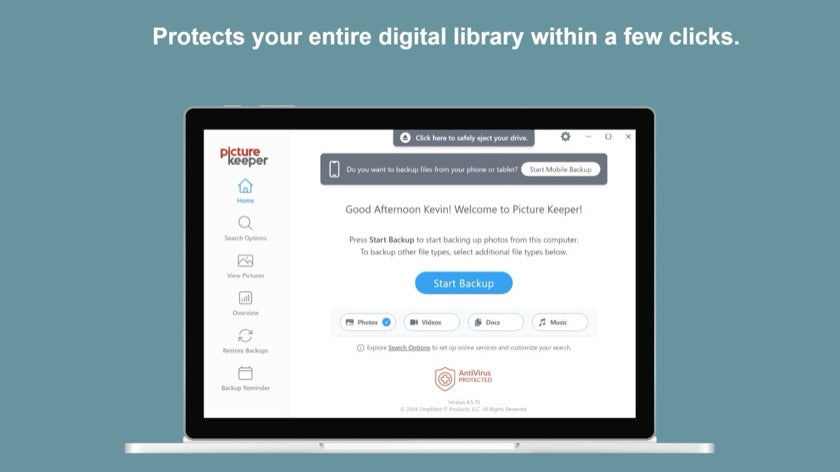
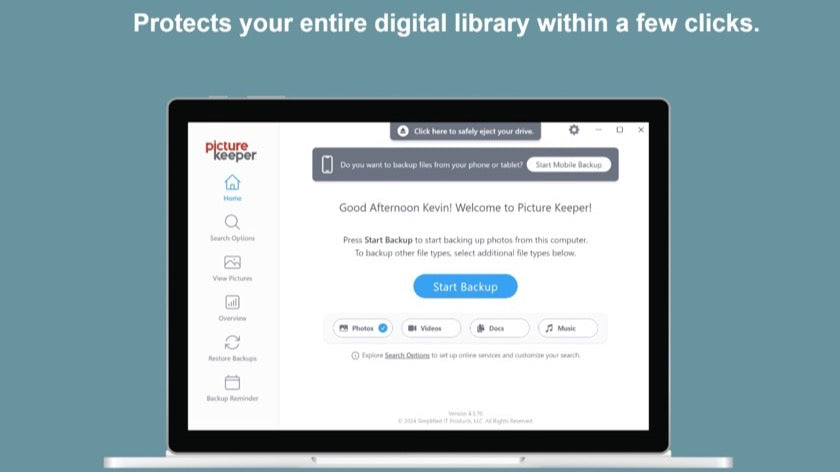
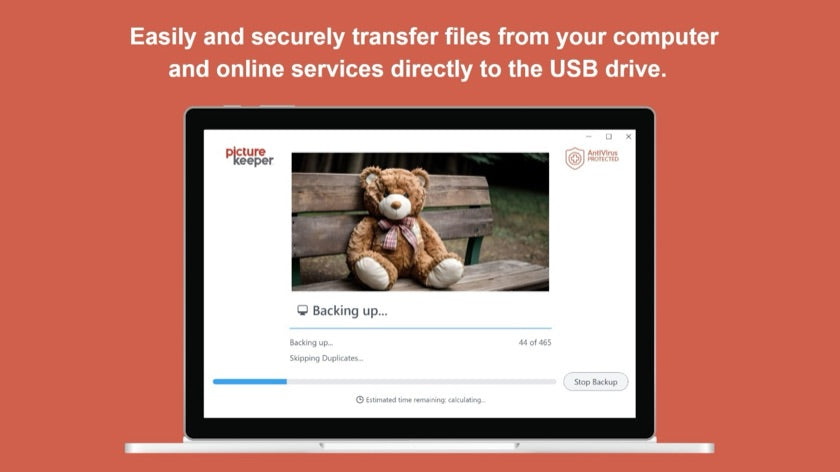
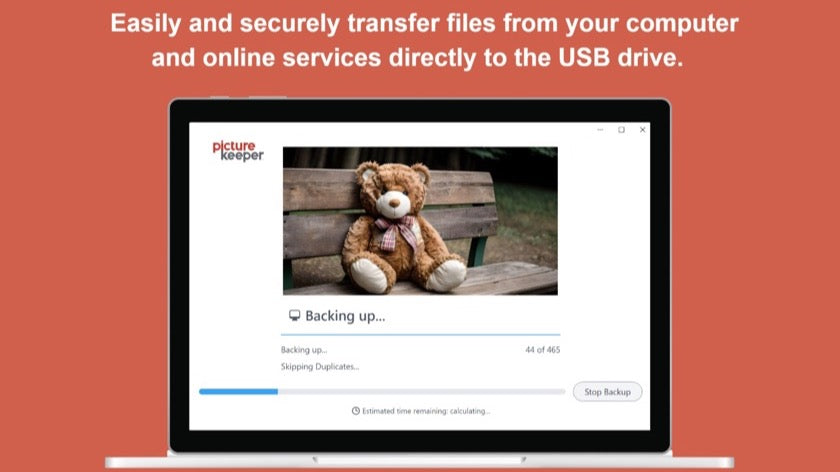
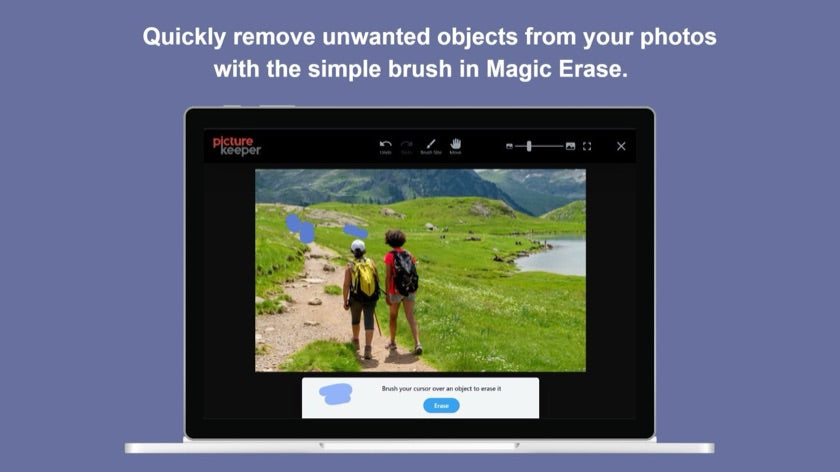
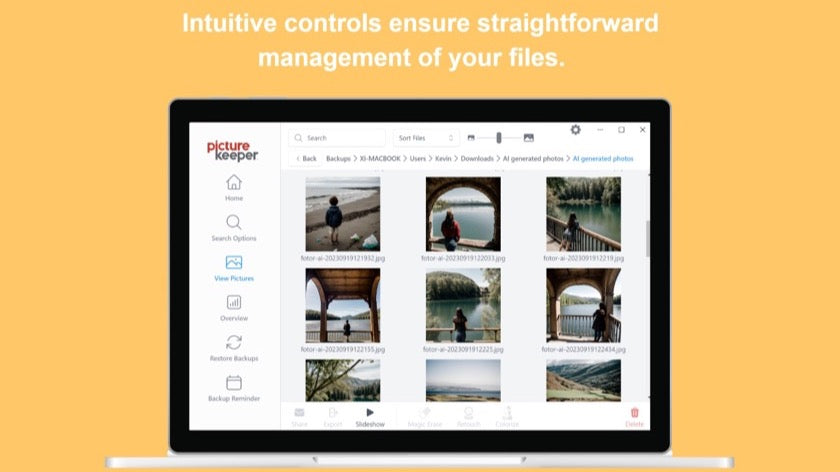
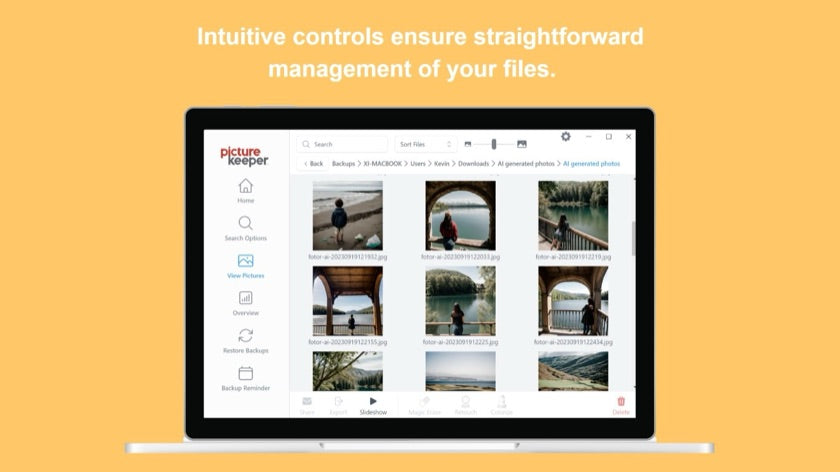
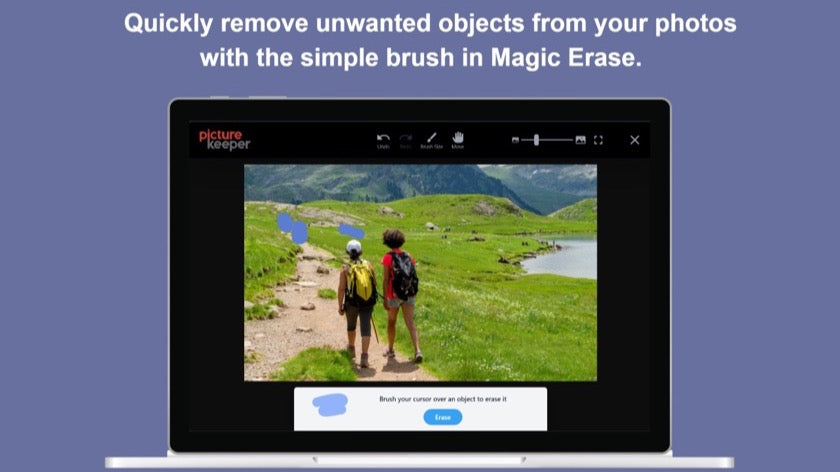



FREE with your drive · About a minute to install
Already installed? Open the app
- 1Open the app, and pin it to your taskbar or Dock so it’s always easy to find.
- 2Leave this drive plugged in — the app will find it on its own.
- 3First time only: the app helps you allow access to your photos and this drive.
- 4Click Start Backup, and your files will be backed up.
Using an older computer? Let’s put the software onto your drive.
The app store version needs Windows 10 or newer, or macOS 10.13 or newer. If your computer is older than that, our FREE Repair Tool loads the Picture Keeper software onto your drive, so you can keep protecting your files.
- 1
- 2Keep your Picture Keeper drive plugged in
The tool needs to see the drive to install the app on it. Don’t unplug it until you’re finished.
- 3Open the file you downloaded and choose your drive
Pick your drive when the Repair Tool asks, then choose Start Repair.
- 4Double-click LaunchPictureKeeperPictureKeeperForMac on the drive
Then click Start Backup, and your files will be backed up.
Stuck anywhere? Our USA-based support team is happy to help.
Visit Help Center Answers to common questions Contact Support Mon–Fri, 9am–5pm Eastern Time
Scan this code with your phone’s camera, or search for “PK Connect” in the App Store or Google Play.
See mobile app features